

Αγορά Σκληρού Δίσκου: Βρες τον καλύτερο για σένα
Είτε έχεις ξεκινήσει κάποιο build, είτε θες να αναβαθμίσεις το σύστημά σου, η αγορά του κατάλληλου δίσκου είναι κάτι πολύ σημαντικό. Σε αυτό τον οδηγό θα εξηγήσουμε τα βασικά χαρακτηριστικά κάθε είδους δίσκου μαζί με χρήσιμα tips.
Οι δίσκοι χωρίζονται με βάση τον τρόπο κατασκευής τους σε 3 είδη: Τους HDD, τους SSD και τους Hybrid αλλά πριν τα αναλύσουμε, χρειάζεται να δούμε το πιο σημαντικό χαρακτηριστικό τους.
Χωρητικότητα Δίσκου: Τι μέγεθος χρειάζεσαι
Οι χωρητικότητες των δίσκων κυμαίνονται από 500GB έως και πάνω από 12TB (1TB=1000GB) για να καλύψουν ακόμα και τις πιο απαιτητικές ανάγκες αποθήκευσης. Σαν γενικό κανόνα, αν αποθηκεύεις πολλά βίντεο/ταινίες προτίμησε δίσκους με μεγαλύτερες χωρητικότητες.
Skroutz Tip: Για ευκολία μπορείς να έχεις στο μυαλό σου πως 1TB ισοδυναμεί με περίπου 35 ώρες βίντεο ποιότητας Full High Definition (1080p) ή περίπου 250.000 εικόνες.
Για απλή καθημερινή χρήση, μια χωρητικότητα από 1 έως και 2 TB είναι ιδανική.
HDD Drives (Hard Disc Drive)
Ο HDD δίσκος είναι ο πιο οικονομικός τύπος σκληρού δίσκου, αφού είναι τεχνολογία που εφαρμόζεται εδώ και αρκετά χρόνια. Η λειτουργία του βασίζεται σε μαγνητικούς δίσκους, οι οποίοι περιστρέφονται με εντυπωσιακές ταχύτητες σε συνδυασμό με μια κεφαλή που διαβάζει/καταγράφει δεδομένα. Η ταχύτητα του μετριέται με τον όρο RPM (rotations per minute) και η πιο συχνή ταχύτητα που συναντά κάποιος είναι τα 7200 rpm. Λόγω των μηχανικών μερών, αυτός ο μηχανισμός εκτός από οικονομικούς, τους καθιστά και πιο ευαίσθητους σε βλάβη σε σχέση με το άλλο είδος που θα δούμε στη συνέχεια.

Ανάλογα με την εφαρμογή που προορίζονται, οι δίσκοι έχουν διαφορετικά μεγέθη, τα οποία μετρώνται σε ίντσες. Το πιο κοινό μέγεθος για desktop είναι οι 3.5” ενώ για laptop ή κάποιο μικρό build είναι οι 2.5”.
Παράλληλα, υπάρχουν σκληροί δίσκοι HDD οι οποίοι προορίζονται και για άλλες εφαρμογές εκτός της απλής αποθήκευσης αρχείων, όπως για κάμερες ασφαλείας (καταγραφικός) αλλά και για server ή σύστημα NAS (Network-Attached Storage).
Πλεονεκτήματα HDD Drives:
- Οικονομικοί
- Διαθέτουν τις μεγαλύτερες χωρητικότητες
Μειονεκτήματα HDD Drives:
- Ευαίσθητοι σε βλάβες
- Θορυβώδεις
SSD Drives (Solid State Drive)
Οι SSD είναι η εξέλιξη των HDD δίσκων αντικαθιστώντας τα μηχανικά μέρη με chips για μείωση του βάρους, των βλαβών αλλά και αυξημένη ταχύτητα απόκρισης, με χαρακτηριστικό τους το αισθητά ταχύτερο boot up του PC. Ακριβότεροι σε σχέση με τους HDD δίσκους αναλογικά με τη χωρητικότητα τους αλλά με μεγαλύτερη αξιοπιστία, οι SSD είναι πλέον το νέο standard. Τέλος, ένα ακόμα σημαντικό πλεονέκτημα είναι πως απαιτούν μικρότερη κατανάλωση ρεύματος για τη λειτουργία τους.

Όπως και οι HDD, η χωρητικότητα τους μετριέται σε GB και TB με τη διαφορά όμως πως για τον ίδιο χώρο, ένας SSD είναι γενικότερα ακριβότερος από έναν μηχανικό ενώ διαθέτουν μικρότερη ποικιλία σε μεγάλες χωρητικότητες (πάνω από 3ΤΒ).
Οι SSD χωρίζονται σε 2 κατηγορίες με βάση το μέγεθος. Οι δίσκοι 2.5 ιντσών οι οποίοι είναι και οι πιο διαδεδομένοι (μπαίνουν και στα παλαιότερα συστήματα) και συνδέονται με το πρωτόκολλο σύνδεσης SATA. Παράλληλα, υπάρχουν και οι M.2 SSD, οι οποίοι μπαίνουν στα νεότερα PC και laptops και συνδέονται με το πρωτόκολλο σύνδεσης είτε SATA, είτε PCIe. Η ιδιαιτερότητα των M.2 είναι πως συνδέονται πάνω στη μητρική χωρίς την ανάγκη για καλώδια.
Αντίστοιχα, οι M.2 χωρίζονται σε 2 κατηγορίες ανάλογα με την ταχύτητά τους. Στους M.2 SATA SSD και στους M.2 NVMe SSD. Οι πρώτοι διαθέτουν ίδιες ταχύτητες με τους 2.5” SSD, ενώ οι δεύτεροι εκμεταλλεύονται το πρωτόκολλο επικοινωνίας PCIe για πολύ πιο γρήγορες ταχύτητες.

Skroutz Tip: Για να συνδέσεις M.2 SSD πρέπει να βεβαιωθείς πως υποστηρίζεται από τη μητρική σου (να έχει την αντίστοιχη θύρα). Και για τους νεότερους και πιο γρήγορους gen4 PCIe ότι τους υποστηρίζει και ο επεξεργαστής.
Είτε σε παλαιότερα συστήματα, είτε όταν η μητρική σου δεν έχει αρκετές θύρες, υπάρχει η δυνατότητα να τοποθετήσεις έναν PCIe SSD ο οποίος συνδέεται κατευθείαν στη διαθέσιμη PCIe θύρα της μητρικής σου.
Πλεονεκτήματα SSD Drives:
- Αξιόπιστοι
- Μεγαλύτερη ταχύτητα λειτουργίας
- Ελάχιστο βάρος/Μέγεθος
- Αθόρυβοι
- Μικρότερη κατανάλωση ρεύματος
Μειονεκτήματα SSD Drives:
- Ακριβοί
- Περιορισμένη χωρητικότητα
Skroutz Tip: Για build (νέο ή παλαιότερο) προτίμησε έναν SSD για το λειτουργικό σύστημα και τα προγράμματα που χρησιμοποιείς περισσότερο και έναν HDD για μεγαλύτερη χωρητικότητα και αποθήκευση μεγάλων αρχείων που δεν αναζητάς σε καθημερινή βάση.
Εξωτερικοί Δίσκοι
Αν θες να μεταφέρεις εργασίες για τη σχολή σου ή θες να έχεις αποθηκευμένες όλες τις καλοκαιρινές σου φωτογραφίες σου σε ένα μέσο, μπορείς να προτιμήσεις την αγορά ενός εξωτερικού δίσκου. Η μόνη διαφορά είναι πως ο εξωτερικός έχει κατασκευαστεί για να μένει εκτός case και μπορεί να συνδεθεί σε όποιο PC θες μέσω ενός απλού καλωδίου USB.
Τόσο οι HDD όσο και οι SSD δίσκοι βγαίνουν και σε εξωτερικές εκδόσεις και διαφορετικά μεγέθη. Αν θες έναν εξωτερικό δίσκο για συχνές και γρήγορες μεταφορές δεδομένων, τότε προτίμησε έναν SSD. Αν απλά θες να το χρησιμοποιείς ως back up ο HDD θα κάνει τη δουλειά σου και θα σου βγει πιο οικονομικός.

Skroutz Tip: Σε περίπτωση που από κάποια αναβάθμιση σου περισσεύει κάποιος εσωτερικός δίσκος (οποιουδήποτε τύπου) μπορείς να τον μετατρέψεις σε εξωτερικό αγοράζοντας την κατάλληλη θήκη για την προστασία του.
Ταχύτητα μεταφοράς δεδομένων
Νεότερη γενιά σύνδεσης USB, όπως το USB 3.2, σημαίνει και γρηγορότερες ταχύτητες μεταφοράς δεδομένων! Έλεγξε τις θύρες που υποστηρίζει ο υπολογιστής σου για να σιγουρευτείς ότι θα τις εκμεταλλευτείς στο έπακρο.
Τέλος, αν χρειάζεσαι συχνά να συνδέεις εσωτερικούς δίσκους (HDD ή 2.5” SSD) εξωτερικά (μέσω USB) με τον υπολογιστή σου, τότε θα σου φανεί ιδιαίτερα χρήσιμο ένα docking station σκληρού δίσκου.
Σκληροί δίσκοι και Gaming
Στο PC gaming η ταχύτητα του δίσκου παίζει ρόλο στη φόρτωση και στα loading screens των παιχνιδιών, ενώ κατά τη διάρκεια του gameplay δεν υπάρχει κάποια διαφορά. Αν θες το ταχύτερο δυνατό loading time στα παιχνίδια σου διάλεξε SSD. Αν από την άλλη δε σε πειράζει να αργεί λίγο και θες μεγαλύτερο χώρο για το library των παιχνιδιών σου, πάρε έναν 7.200rpm HDD με μεγαλύτερη χωρητικότητα.
Όσον αφορά το console gaming, συσκευές όπως το Playstation και το XBOX επιτρέπουν στους χρήστες τους να αντικαταστήσουν τους υπάρχοντες δίσκους ή να προσθέσουν εξωτερικούς για να αυξήσουν τη μνήμη τους. Η κάθε κονσόλα και έκδοση της, έχει ξεχωριστές απαιτήσεις και συμβατότητες, συνεπώς πριν προχωρήσεις στην αγορά κάποιου επιπλέον δίσκου, διάβασε προσεκτικά τo user manual από την αντίστοιχη σελίδα του κατασκευαστή. Για παράδειγμα, εδώ μπορείς να δεις συμβατούς δίσκους για το PS4.
Skroutz Tip: Το PlayStation 5 μέσω firmware update πλέον διαθέτει τη δυνατότητα επέκτασης του εσωτερικού του χώρου αποθήκευσης προσθέτοντας στο σύστημα έναν M.2 NVMe SSD.
Αν βρήκες τον οδηγό χρήσιμο, συνέχισε το build σου μαθαίνοντας τα απαραίτητα για τις μητρικές κάρτες και τους επεξεργαστές.
Σχετικά Άρθρα
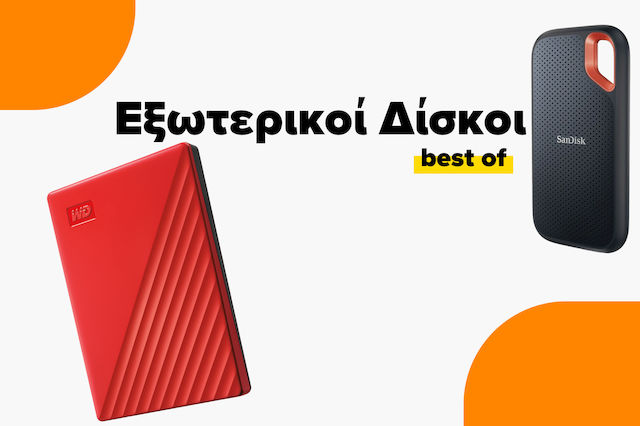
Οι καλύτεροι Εξωτερικοί Δίσκοι της αγοράς
Τροφοδοτικά Υπολογιστή: Αναλυτικός Οδηγός Αγοράς
Τα καλύτερα Τροφοδοτικά Υπολογιστή της αγοράς

Άφησε πρώτος το σχόλιό σου!