
Hard Drive Buying Guide
How to choose the right hard drive.
A hard disk drive is a storage device used to store data on magnetic media. It consists of a rotating disk and a read/write head that reads and writes data on the disk.
Hard disk drives are one of the most common data storage devices and are used in a variety of devices, such as computers, laptops, servers, and data storage devices.
They are available in various capacities, ranging from a few GB to many TB. The capacity of a hard disk drive determines how much data it can store.
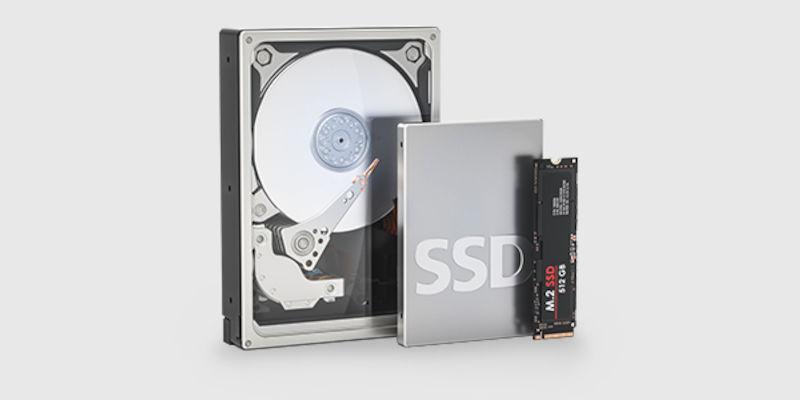
When it comes to discovering the drives, we identify two main types based on their construction. The HDD and the SSD, but before we analyze them, we need to look at their most important characteristic.
Disk capacity: Find the size you need
The hard drive capacity depends on your needs. Drive capacities range from 500GB to over 12TB (1TB=1000GB) to cover even the most demanding storage needs. If you store only the essential files, a 1TB or 2TB hard drive is enough. However, if you store many video, music, or photo files, you will need a hard drive with greater capacity.
Skroutz Tip: For convenience, you can keep in mind that 1TB is equivalent to about 35 hours of Full High Definition (1080p) video or about 250,000 images.
HDD Drives (Hard Disc Drive)
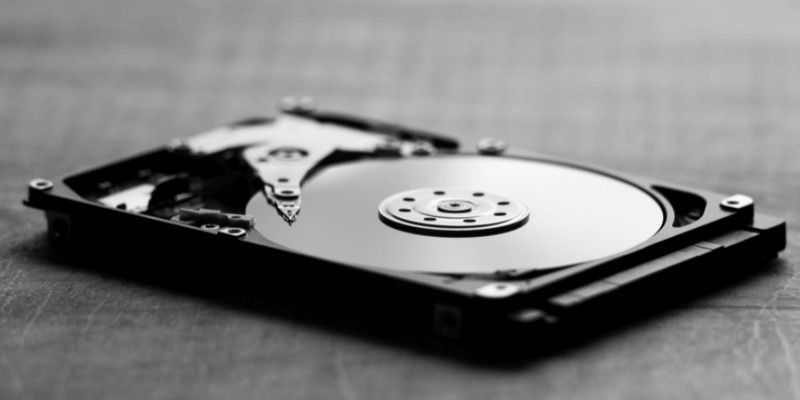
HDDs are one of the oldest and most widely used forms of data storage in computers. Their operation is based on magnetic disks, which rotate at impressive speeds in combination with a head that reads/writes data. Their speed is measured in RPM (rotations per minute), and the most common speed one encounters is 7200 rpm. Due to their mechanical parts, this mechanism, apart from being economical, also makes them more vulnerable to failure compared to the other type we will see next.
Sizes
The sizes of HDD drives range from 2.5'' to 3.5'', depending on the application they are intended for. The 2.5'' drives are smaller and lighter than the 3.5'' drives and are usually used in laptops and other portable devices. The 3.5'' drives are larger and heavier than the 2.5'' drives and are usually used in desktops and servers.
At the same time, there are HDD hard drives that are also intended for other applications beyond simple file storage, such as for security cameras (surveillance), PS4 consoles, as well as for server or NAS (Network-Attached Storage) systems.
HDDs Hard Drives suitable for Desktop, Laptop, PS4


SSD Drives (Solid State Drive)
The SSD drives are the evolution of HDD drives, replacing mechanical parts with chips to reduce weight and failures, while also providing faster response speed, with their characteristic being the noticeably faster boot up of the PC. The read/write head of SSD drives does not move, as it does in HDD drives. Instead, the read/write head is fixed in place and uses electrical signals to read or write data to flash memory units.
Compared to HDD drives and also in relation to their capacity, they offer greater reliability, so we can say that SSDs are now the new standard.
Sizes
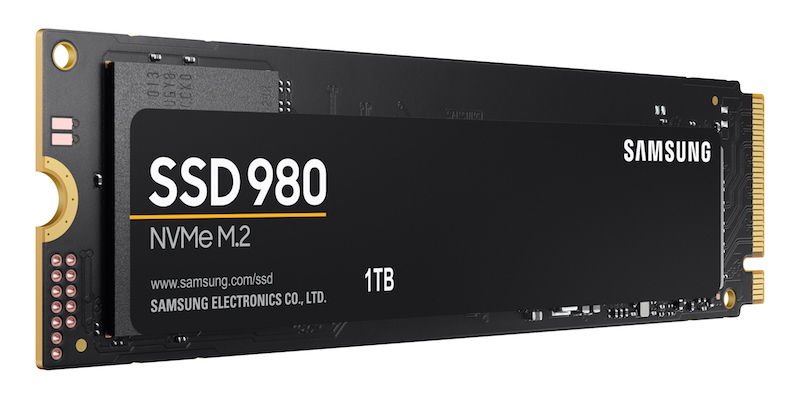
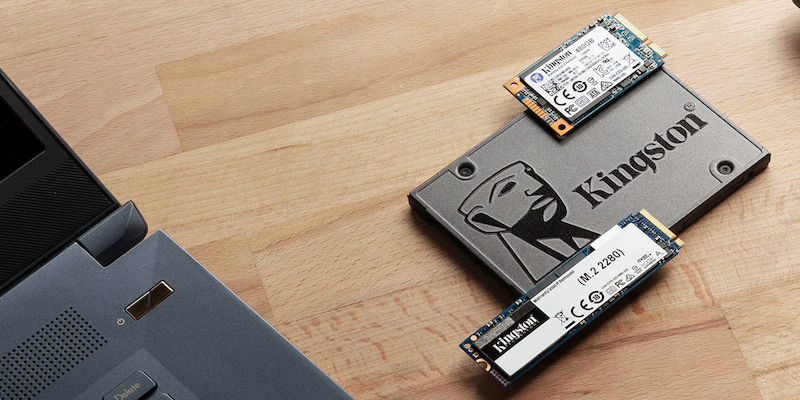
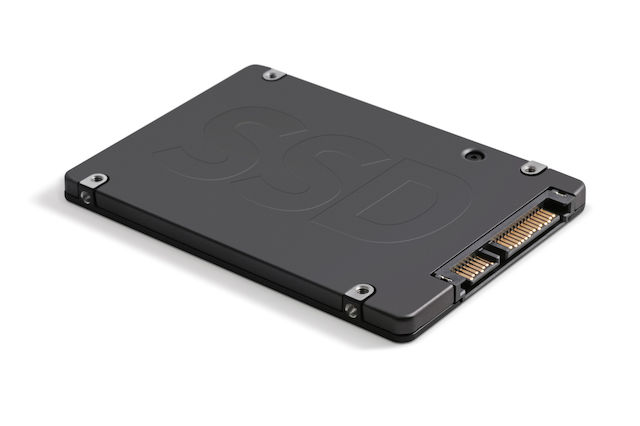
SSDs are mainly divided into 2 categories based on size. The 2.5-inch drives, which are also the most common (they also fit older systems), and they connect via the SATA interface. In addition, there are M.2 SSDs, which are used in newer PCs and laptops and connect via either SATA or PCIe. The special feature of M.2 is that they connect directly to the motherboard without the need for cables.
Similarly, M.2 drives are divided into 2 categories depending on their speed: M.2 SATA SSDs and M.2 NVMe SSDs. The former offer the same speeds as 2.5” SSDs, while the latter take advantage of the PCIe communication protocol for much faster speeds.
Skroutz Tip: To connect an M.2 SSD, you must make sure it is supported by your motherboard (that it has the corresponding slot).


PCIe 5.0
PCI Express 5.0 is the fifth generation of this technology and offers increased data transfer speeds compared to previous PCIe generations, which are used in computers and other devices to transfer data between the individual components of the computing system.
PCIe 5.0 offers a maximum data transfer speed of 32 GT/s (giga-transfers per second) per lane, providing twice the speed of PCIe 4.0. It also supports greater bandwidth, allowing more devices to share the same PCIe connection without compromising performance.
SSD drives are the devices that benefit the most from PCIe 5.0. SSD drives use the PCIe interface to communicate with the processor and memory, so the higher speed of the PCIe 5.0 interface translates into faster performance for SSD drives.
Therefore, by purchasing such a drive, you automatically get better read and write speeds of up to 12.8 GB/s and 7.0 GB/s respectively, while also having the latest version of the PCI Express interface. So, to enjoy benefits such as faster application/file loading, data transfer, and quicker computer startup, check here to find what suits you.
HDD Unit vs SSD Unit
SSD (solid state drives) and HDD (hard disk drives) are two different types of storage disks for computers. The main difference between them is the way they store and retrieve data.
Advantages of SSD:
- Higher operating speed
- Minimal weight/size
- Silent
- Lower power consumption
Disadvantages of SSD:
- Limited capacity
Advantages of HDD:
- They have larger capacities
- Easy to manage and repair
Disadvantages of HDD:
- Susceptible to damage
- Noisy
Skroutz Tip: For building a new or older system, prefer an SSD for the operating system and the programs you use the most, and an HDD for larger capacity and storage of large files that you don't access on a daily basis.


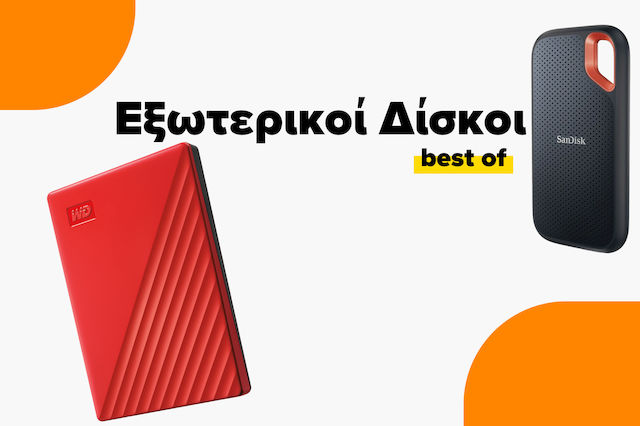
External Hard Drives
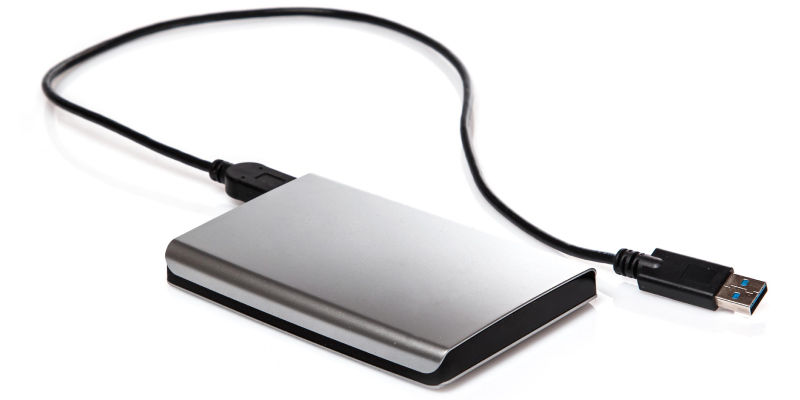
If you want to transfer assignments for your school or keep all your photos stored on one medium, you can choose to buy an external drive. The only difference is that the external one is designed to stay outside the case and can be connected to any PC you want via a simple USB cable.
Both HDD and SSD drives are also available in external versions and different sizes. If you want an external drive for frequent and fast data transfers, then choose an SSD. If you simply want to use it as a backup, the HDD will do the job and will be more economical.
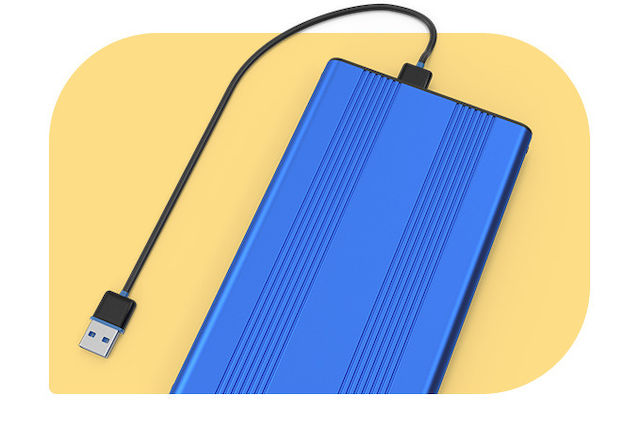
Skroutz Tip: In case you have an internal drive left over from an upgrade (of any type), you can turn it into an external one by buying the appropriate enclosure to protect it.
Hard Drive Performance
Data transfer speed
Data transfer speed refers to the maximum rate at which the drive can read or write data. Many factors determine the performance of a traditional hard disk drive (HDD), but revolutions per minute (RPM) are important. Higher RPM means faster data transfer to and from the drive. However, it also means more friction and a shorter lifespan. Of course, RPM has no application in SSDs. For these, the maximum write and read speed matters.
A newer generation of USB connection, such as USB 3.2, also means faster data transfer speeds! Check the ports supported by your computer to make sure you take full advantage of them.
Finally, if you often need to connect internal drives (HDD or 2.5” SSD) externally (via USB) to your computer, then a hard drive docking station will be especially useful.
Temporary storage space
When an HDD needs to transfer data from one part of the drive to another, it uses a special area of built-in memory called cache (or buffer).
A larger cache allows data to be transferred faster, because more information can be stored at the same time. Modern HDDs can have cache sizes from 8MB to 512MB.
Cache memory does not apply to SSDs.
NAND Flash Memory
NAND Flash Memory is a type of computer memory used for data storage on electronic chips. NAND Flash Memory is used in a variety of devices such as USB flash drives, SSDs, memory cards, portable device memory, and phone memory.
Unlike DRAM memory, which needs to be constantly powered to maintain information, flash memory retains data even when the power is turned off. In recent years, the cost of NAND flash has dropped significantly, making SSDs, or solid state drives, a common choice as an upgrade from traditional mechanical hard drives as the primary storage method. This is fantastic for various reasons - SSDs have no moving parts like a traditional hard drive, making them faster, more durable, so data is not destroyed if they fall, and they consume less power than a traditional hard drive, extending battery life, etc.
There are various types of NAND Flash Memory, which differ in the way they store data on chips. The most common types are:
- Single-level cell (SLC) NAND: SLC NAND can store one bit of data in each memory cell. It is the fastest and most durable form of NAND Flash Memory, but it is also the most expensive.
- Multi-level cell (MLC) NAND: MLC NAND can store two bits of data in each memory cell. It is less expensive than SLC NAND, but it offers lower speed and lifespan.
- Triple-level cell (TLC) NAND: TLC NAND can store three bits of data in each memory cell. It is the least expensive form of NAND Flash Memory, but it offers the lowest speed and lifespan.
- Quad-level cell (QLC) NAND: QLC NAND can store four bits of data in each memory cell. It is even less expensive than TLC NAND, but it offers even lower speed and lifespan.
- 3D NAND: 3D NAND Flash Memory can store up to 100 times more data, has lower cost, and is faster than traditional 2D NAND Flash Memory.
Which type of NAND Flash Memory is better for hard drives?
The best type of NAND Flash Memory for hard drives depends on your needs. If you need the fastest possible performance, a hard drive with MLC or SLC NAND is the best choice. If you need greater storage capacity at an affordable price, a hard drive with TLC NAND is the best choice.
Gaming and Hard Drives
HDD Hard Drives Compatible with PS4
Check out the differences in SSD and HDD in the highly discussed Starfield
PC gaming
In PC gaming, the speed of the drive plays a role in loading and loading screens in games, while during gameplay there is no difference. If you want the fastest possible loading time in your games, choose SSD. On the other hand, if you don’t mind it being a little slower and want more space for your game library, get a 7,200rpm HDD with larger capacity.

- Read Speed 7300 MB/s
- Write Speed 6000 MB/s
- Maximum 4KB Random Write 800K IOPS
The FireCuda 530 with heatsink offers a minimalist design, an anodized aluminum body, and a micro-textured surface for improved heat transfer and lower SSD temperatures, making it extremely efficient in maximum cooling to maintain maximum performance for longer periods of time. The FireCuda 530 is compatible with PS5™ consoles and meets the performance and size specifications of the PS5.
M.2 SSD Installation Guide for PS5
Playstation and XBOX
When it comes to console gaming, devices like Playstation and XBOX allow their users to replace their existing disks or add external ones to increase their memory. Each console and its version have separate requirements and compatibilities, so before you proceed to purchase an additional disk, carefully read the user manual from the manufacturer's corresponding page.
Playstation 5 and SSD
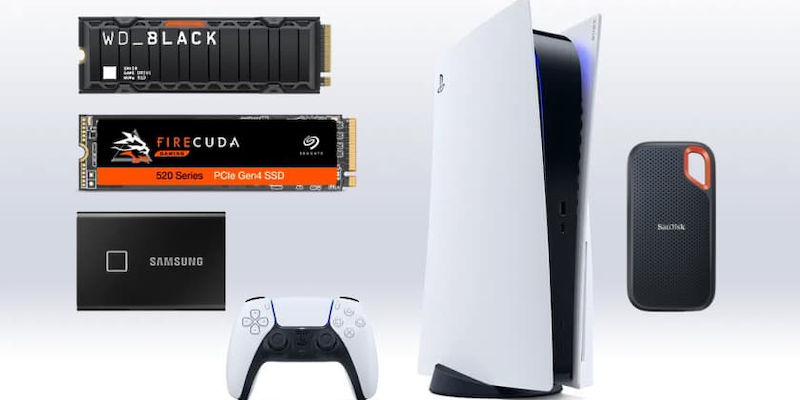
In addition to the built-in SSD it already has, the PlayStation 5 also features a storage expansion slot. Through a firmware update, the PlayStation 5 now offers the ability to expand its internal storage by adding an M.2 NVMe SSD to the system.
Storage expansion on the PlayStation 5 is a good option if you need more storage capacity for your games.
Skroutz Tip: It is important to note that games installed on the external SSD must be copied to the built-in SSD in order to run.
Relevant Articles
Which are the best SSDs for 2026?
The Best External Hard Drives on the Market
SSD Buying Guide
Be the first to leave a comment!