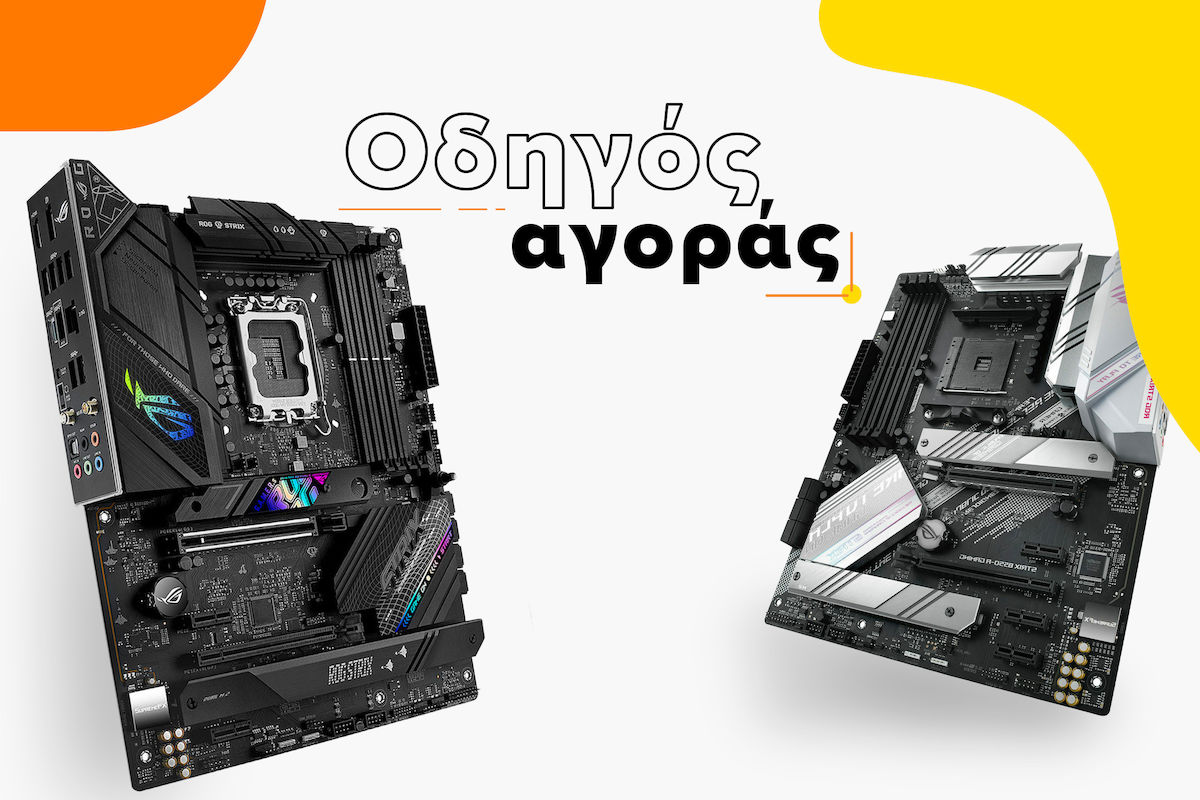

Motherboard Buying Guide
How to choose the right motherboard

The motherboard or mainboard is the central hub of the entire computer and the driving force behind all its hardware. Like a good orchestra conductor, it coordinates all the components of the machine such as RAM memory, the Graphics Card, the Processor, the SSD, etc., so they work harmoniously together.
The motherboard distributes electrical power from the Power Supply to the computer’s components, providing them with the power they need to operate. It also allows all components to communicate with each other, so the computer can function as a single system.
For example, if you want to open a document stored on your SSD, the motherboard will direct the CPU to read data from the SSD with the help of RAM and process it so it can display it on your screen.
Regardless of their complexity, all motherboards have certain common features, such as RAM slots, PCIe slots, SATA ports, USB ports, power connectors, and audio connectors. Each type of connection ensures that different components can be easily connected to the board without the need for additional cables or adapters.
Key points for choosing a Motherboard

CPU Socket
The CPU socket is the point where the brain of the entire system is placed. It is designed in such a way that it is very easy to install the processor. Simply place it in the socket in the correct orientation and secure it with the lever. The processor should incorporate the same chipset as the one supported by the motherboard. For example, processors with Socket 1700 fit into motherboards that support this specific Socket.
A secondary factor is the chipset model of the motherboard, which comes with different features and is chosen according to the intended use of the computer. In this example, we can see that the compatible chipsets for Socket 1700 are Z790, B760, Z690.
Usually, the first letter, in our case Z and B, indicates a set of features that the chipset offers. For example, Z (790/690) refers to high-performance motherboards that are suitable for gamers and overclockers. B (760) is aimed at more casual users and is usually more affordable.
If you are thinking about overclocking, you cannot choose just any motherboard and processor, since the latter will need to be unlocked. For Intel processors, make sure the model name ends with the letter K, while the motherboard should have a chipset starting with Z as mentioned earlier. With AMD, things are simpler, as all recent generations of its processors have this capability, while for motherboards, common chipsets such as B650 or the new B850 will fit perfectly.
For convenience, this table gathers all the information you need to make the appropriate match depending on whether you have an AMD or Intel processor.
Intel
AMD
Skroutz Tip: For better stability, if you plan to invest in an expensive, high-performance processor or for overclocking, it is worth paying attention to the motherboard's VRM.
The VRM, or voltage regulator module, is crucial for controlling and "cleaning" the CPU's power in all scenarios, which means that higher quality VRMs are generally more suitable for high-performance processors that run hot or require stability in overclocking.

Motherboards for Hardcore Gamers and Overclockers for AMD processors (Socket AM5)

Motherboards for Hardcore Gamers and Overclockers for Intel processors (Socket 1700)


RAM Slots
RAM slots are the points where you install the RAM memory. RAM is responsible for storing information that needs to be accessed quickly. Simply put, the more memory you have, the more tasks can be performed simultaneously and at high speed.
The modern standard for RAM is DDR5, which is also mandatory if you choose the new AMD (AM5) and Intel (LGA 1851) platforms. The older DDR4 remains an excellent and economical solution (Value for Money), but is now limited to older sockets (such as AM4) or certain budget motherboards with Intel’s LGA 1700 socket.
Each motherboard specifies the maximum RAM capacity it can support, how many slots it has, and their version (DDR4 or DDR5). The last one is what interests you the most, as to achieve maximum performance, it is preferable to pair your memory modules (dual channel). That is, if your goal is 32GB, it is better to combine two 16GB modules rather than one 32GB module.
Tip: DDR4 and DDR5 memory have different slots, so a DDR5 motherboard cannot accept DDR4 memory and vice versa.

RAM Installation Guide on the Motherboard
PCIe Slots
PCIe slots are the points where you mainly connect your graphics card, as well as other expansion cards. The most widely used PCIe standard found in modern graphics cards is PCIe 4.0. It offers twice the speed compared to PCIe 3.0. This means that graphics cards using PCIe 4.0 can transfer data at twice the speed of graphics cards using PCIe 3.0, resulting in improved performance in games and applications that require high graphics performance.
Storage Devices
Every computer uses storage space, whether it is a 2.5" SSD on SATA ports or M.2. With the drop in SSD prices, we will no longer refer to HDDs, as they are an older technology that is increasingly being abandoned, while their use is limited to backup, DVRs, etc.
What matters for the motherboard is that it has enough SATA ports for the 2.5” SSDs you want to install, as well as slots for M.2 SSDs. The latter are more modern and faster than 2.5" SSDs. They also take up less space as they are integrated into the motherboard, making them almost invisible most of the time.
The most common communication protocol for M.2 is PCI Express 4.0, while the recent PCI Express 5.0 has also made its appearance. PCIe 4.0 offers a maximum data transfer speed of 16 GT/s (gigatransfers per second), while PCIe 5.0 offers double the bandwidth (up to 32 GT/s), allowing the latest high-end M.2 SSDs to reach top read and write speeds. This means that PCIe 5.0 is twice as fast as PCIe 4.0 but also significantly more expensive for now. Nevertheless, it is a good choice for a motherboard with this feature, as it makes it Future Proof for when PCIe 5.0 becomes the new standard.
In terms of speed, PCIe 4.0 drives have a maximum sustained read/write speed of 5,000MBps, while SATA III drives have a maximum sustained read/write speed of 600MBps. This means that PCIe 4.0 drives are over eight times faster than SATA III drives.
It is essential that your motherboard supports the above in order to use them.
Instructions for Proper Installation of an M.2 Storage Device
Instructions for Proper Installation of a 2.5" SSD Storage Device
Motherboards for casual users with Intel processors (Socket 1700)


Rear I/O Panel
Here is the motherboard’s rear I/O panel. This is where you will find all the main input and output connections and the connection points for all external cables.
Depending on the peripherals you want to connect to your PC, you need to make sure your motherboard has the appropriate ports. For example, if you are going to buy a processor that has integrated graphics (integrated graphics), check that it has the appropriate HDMI, Display Port or even both connections for the monitor you want to connect.
At the same time, prefer to have enough USB ports for everything you want to connect, and if you have devices that are compatible with the latest generation of USB, you may want it to include USB 3.2, so you can take advantage of the improved speed.

Motherboards for casual users with AMD processors (Socket AM4 or AM5)


Smart Lighting
Because many builders are also interested in appearance beyond their PC’s performance, there are motherboards that feature RGB lighting. On the other hand, if you want to connect components such as fans, which have 12v RGB or 5v aRGB lighting, make sure your motherboard has the corresponding RGB Headers so you can control them.

New Technologies Worth Your Attention
Wireless Networking (Wi-Fi 7)
If you don't want to run Ethernet cables, many motherboards come with built-in Wi-Fi (you'll notice it by the word "WIFI" in the model name). The latest high-end motherboards feature the Wi-Fi 7 standard, which offers extremely low latency and speeds that reach the levels of wired networks.
Motherboards with "Hidden Cables" (Back-Connect / BTF / Project Zero)
A brand-new trend in PC building is motherboards with hidden connections (such as the ASUS BTF series, MSI Project Zero, and Gigabyte Stealth). In these, all the cable ports (power, SATA, fans) are located on the back of the board for an absolutely clean visual result.
Attention: If you choose such a motherboard, you need to make sure that the case (PC Case) you buy is specially designed to support back-connect motherboards.
Relevant Articles
Computer Power Supplies: Detailed Buying Guide
The best Computer Power Supplies on the market

Buying Guide for Computer Cases
Be the first to leave a comment!